

 Home
HomePage 8 of 11: Source Folder Selection & Review Settings
Now that your settings are correct, lets start backing up DVD's!
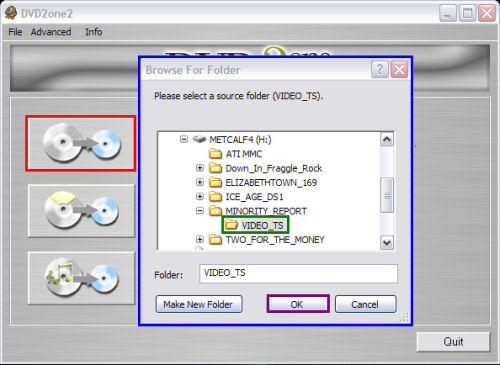
Start up DVD2One, then click the first button (red). After clicking the first button, the "Browse For Folder" window will come up (blue). Find your folder, click the little plus sign out beside it and click the "VIDEO_TS" folder (green). Then click the "OK" button (purple). (Screen Shot Below)
After clicking the "OK" button, you are brought to a review screen to make sure your settings are what you want (red). It gives information about your current settings that will be applied to this backup. For any reason you would like to change some of these settings, do it now (Go to next page to read on how to change your settings). Otherwise just click "Start processing" button (blue) to begin the process.
Start up DVD2One, then click the first button (red). After clicking the first button, the "Browse For Folder" window will come up (blue). Find your folder, click the little plus sign out beside it and click the "VIDEO_TS" folder (green). Then click the "OK" button (purple). (Screen Shot Below)
After clicking the "OK" button, you are brought to a review screen to make sure your settings are what you want (red). It gives information about your current settings that will be applied to this backup. For any reason you would like to change some of these settings, do it now (Go to next page to read on how to change your settings). Otherwise just click "Start processing" button (blue) to begin the process.


