

 Home
HomePage 11 of 11: Processing & Finished
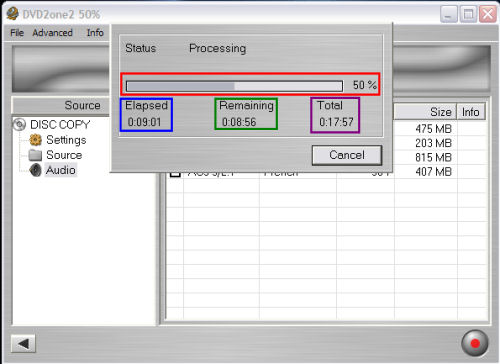
After clicking the "OK" button to select your destination directory, DVD2One will start the encoding process. A window will pop up displaying what percent its at (red), time elapsed so far (blue), time remaining (green), and total estimated time for the whole process to complete (purple). (Screen Shot Below)
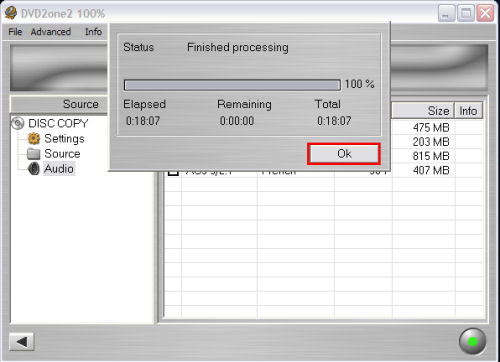
This screen will come up when its finished, just click the "OK" button (red). After clicking the "OK" button, it will just return you back to the main DVD2One screen. You may now exit DVD2One. You can burn the files it created with your favorite burning program or if you selected "Burn" as your output type, DVD2One would have also burned it for you.
Enjoy your newly created DVD!
This screen will come up when its finished, just click the "OK" button (red). After clicking the "OK" button, it will just return you back to the main DVD2One screen. You may now exit DVD2One. You can burn the files it created with your favorite burning program or if you selected "Burn" as your output type, DVD2One would have also burned it for you.
Enjoy your newly created DVD!

