
Software you will need:
DVD2One
With DVD2One you can make movie-only and full disk copies for personal use on a single DVD-Recordable.
Key features include:
Unique video compression engine: combines blazing speed with the highest quality.
Multi-processor, multi-core and multi-computer (grid) compatible.
Process a movie to fit on a single recordable in a matter of 15 to 30 minutes (depending on the speed of your computer).
Make movies-only copies. Why waste space and image quality on unnecessary intros, menus and language tracks?
Make also full disk copies. For those who want to keep those fancy menus and intros.
Powerful join mode. Useful for putting multiple episodes of a (tv) series or joining both sides of a flipper on 1 disk.
Re-master your CDs on DVD in Super CD quality.
Built in burn engine.
Written from scratch, not based on any old code, libraries or existing open source projects.
Time critical parts written in assembly, for the highest possible speed.
Both PC Windows and Mac OS-X versions available.
Note: DVD2One software only works with unprotected DVD files. DVD2One has no "decrypting" abilities.
Settings:
There are 7 sections you have settings for:
User Interface
Burning
Default Audio Selection
Default Subtitle Selection
Audio Remaster
Grid Master
Grid Slave
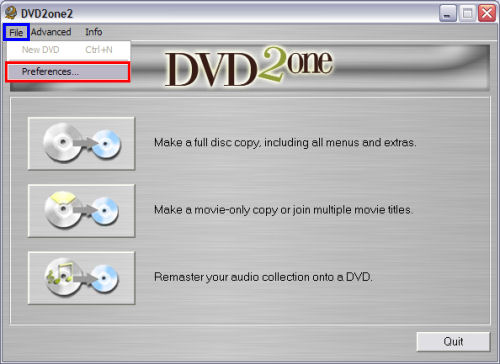
Lets start by customizing the settings, click "File" (blue), then "Preferences" (red). (Screen Shot Below)
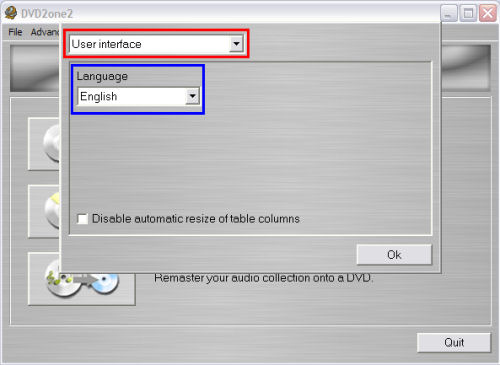
Now on this screen, there is a drop down box at the top to select the settings for each 7 sections I listed above. The first section you will get to is the "User Interface" section (red). Basically all there is to do here is select the language you want DVD2One to use (blue). English, Japanese, Dutch, French, German, Italian, Portuguese and Spanish are the supported languages. (Screen Shot Below)


 Home
Home


