

 Home
Home

Page 1 of 2: How to Mount or Watch .ISO Image Files with DAEMON Tools
In common use, an "ISO" file is a single file that contains the complete image of a disc. Such files are often used when transferring CD-ROM images over the Internet.
In this guide I will be showing you how to mount a ".ISO" image in a virtual drive to play/watch it.
First thing you need to do is download DAEMON Tools if you haven't already. You can download it here.
Once you have installed and started DAEMON tools, you should now see a "lightning bolt" icon (green) next to your PC clock. [Screen Shot Below]

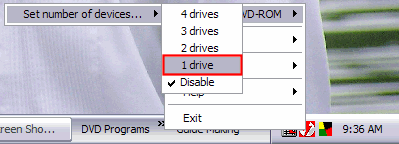
Go ahead and right click that icon and then left click "VIRTUAL CD/DVD-ROM" , then left click "Set number of devices...", then decide on how many virtual drives you wish to have. For this tutorial I only choose "1 drive" (red). [Screen Shot Below]
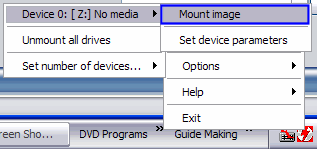
After that, go ahead and right click that "lightning bolt" icon again, left click "VIRTUAL CD/DVD-ROM" again. Then left click "Device 0: [*Letter*] No media", then left click "Mount image" (blue). [Screen Shot Below]
In this guide I will be showing you how to mount a ".ISO" image in a virtual drive to play/watch it.
First thing you need to do is download DAEMON Tools if you haven't already. You can download it here.
Once you have installed and started DAEMON tools, you should now see a "lightning bolt" icon (green) next to your PC clock. [Screen Shot Below]
Go ahead and right click that icon and then left click "VIRTUAL CD/DVD-ROM" , then left click "Set number of devices...", then decide on how many virtual drives you wish to have. For this tutorial I only choose "1 drive" (red). [Screen Shot Below]
After that, go ahead and right click that "lightning bolt" icon again, left click "VIRTUAL CD/DVD-ROM" again. Then left click "Device 0: [*Letter*] No media", then left click "Mount image" (blue). [Screen Shot Below]
1 2 
