

 Home
HomePage 2 of 2: How to Mount or Watch .ISO Image Files with DAEMON Tools
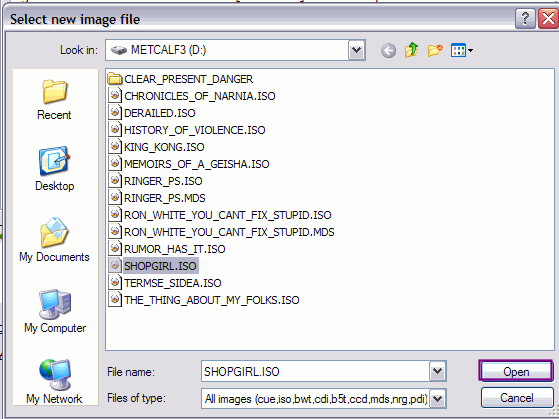
Then on the screen that pops up, navigate to where your ISO file is to mount it to the virtual drive. When you find it, click it once then click the "Open" button (purple). [Screen Shot Below]
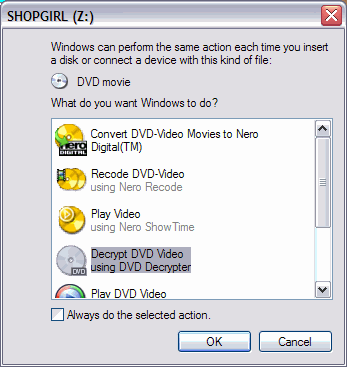
After clicking the "Open" button, it will act just like you put a DVD in. It will ask you what you want windows to do. Either pick a task for it to follow or cancel it and do your own thing if the program you want to use is not listed there. [Screen Shot Below]
Ok your finished with loading the image.
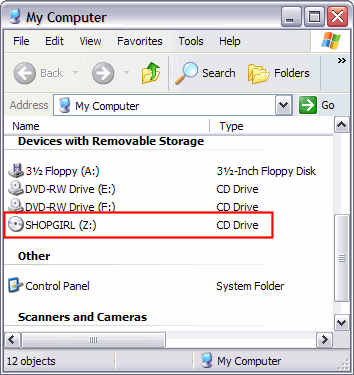
Now if you go to "My Computer", you will see a "extra" drive listed there (red). That is the "virtual drive" created by DAEMON Tools. [Screen Shot Below]
To remove it, right click that icon and then left click "VIRTUAL CD/DVD-ROM" , then left click "Set number of devices...", then click "Disable".
POOF! Its gone!
After clicking the "Open" button, it will act just like you put a DVD in. It will ask you what you want windows to do. Either pick a task for it to follow or cancel it and do your own thing if the program you want to use is not listed there. [Screen Shot Below]
Ok your finished with loading the image.
Now if you go to "My Computer", you will see a "extra" drive listed there (red). That is the "virtual drive" created by DAEMON Tools. [Screen Shot Below]
To remove it, right click that icon and then left click "VIRTUAL CD/DVD-ROM" , then left click "Set number of devices...", then click "Disable".
POOF! Its gone!
 1 2
1 2 