

 Home
Home


Page 1 of 1: Using VirtualDub - Saving just the audio as a .wav file
Software you will need:
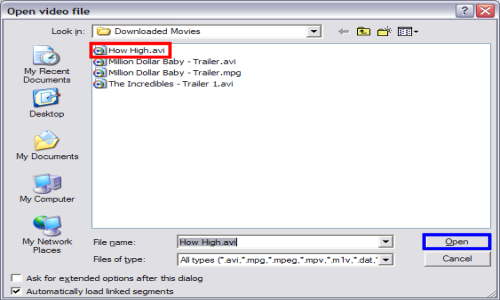
To strip the audio out of a .avi file and save it as a .wav file, simply open up the video file (red) in VirtualDub (File > Open video file...) and click "OK" (blue). (Screen Shot Below)
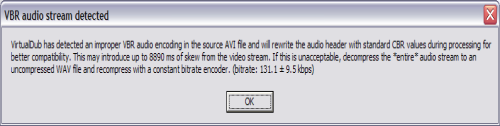
After clicking "OK" this error message might pop up, just click "OK" Its just a warning message. (Screen Shot Below)
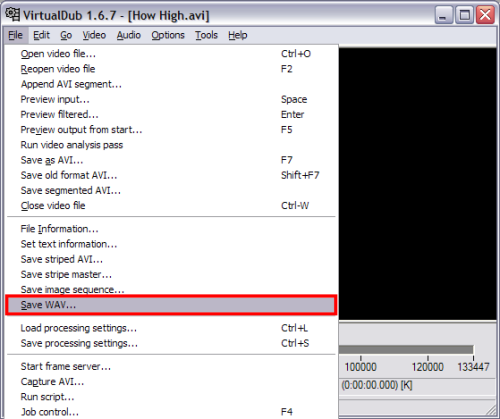
Then from the "File" menu, click "Save WAV..." (red). (Screen Shot Below)
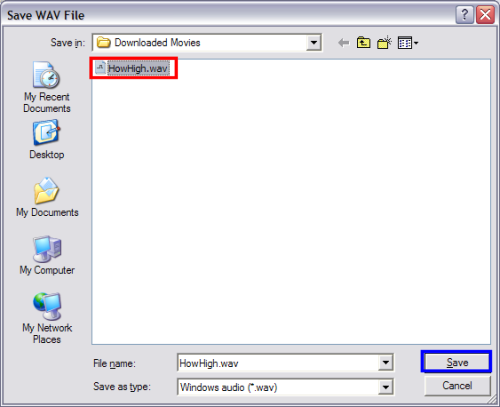
On the window that , type the name of the .wav file you want. For simplicity reasons, just use the same file name as the .avi file or similar.
Done! You have now saved the audio stream as a .wav file.
To strip the audio out of a .avi file and save it as a .wav file, simply open up the video file (red) in VirtualDub (File > Open video file...) and click "OK" (blue). (Screen Shot Below)
After clicking "OK" this error message might pop up, just click "OK" Its just a warning message. (Screen Shot Below)
Then from the "File" menu, click "Save WAV..." (red). (Screen Shot Below)
On the window that , type the name of the .wav file you want. For simplicity reasons, just use the same file name as the .avi file or similar.
Done! You have now saved the audio stream as a .wav file.
