

 Home
HomePage 4 of 6: Using VirtualDub - Re-encode AVI for standalone compatibility
Using the XviD codec:
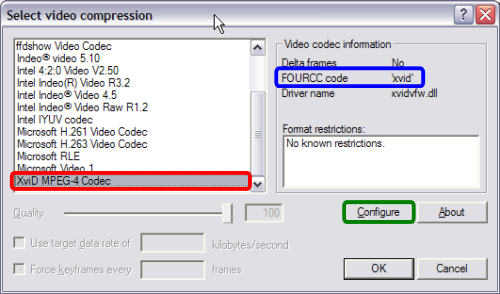
Select the XviD codec (red). Sometimes you have more than on XviD listed (one with "FOURCC Code" "xvid" and another with "yv12") - in this case, choose the one that has the "FOURCC Code" "xvid" (blue). Click on Configure (green) to continue. (Screen Shot Below)
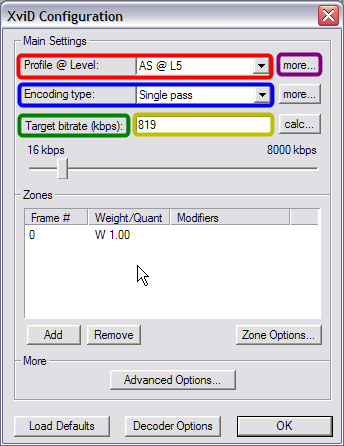
After clicking on the "Configure" button, this screen will come up. There are several things we need to check/change here so I will refer to them by color. The color corresponds to the color box on the screen shot. Do them in the order I list below. (Some might already be set to what they are suppose to be though.). For a more detailed explanation of profiles, and other XviD codec settings, please refer to this guide.
Red - 1. Click the down arrow and select "AS @ L5" for the profile @ level. "AS" stands for "Advanced Simple". As mentioned above many DVD players only support "Simple" or "Advanced Simple" profiles, and without QPEL/GMC support.
Blue - 2. "single pass" is the fastest, but won't give you the best quality. "Twopass" will take approximately double the time of a "single pass", but the quality will improve. For this guide, we'll select "single pass".
Green - 3. Click this button until it says "Target bitrate (kbps)" on the button
Gold - 4. Enter in the bitrate number you wrote down from GSpot in the first step or for something more precise, click on the "calc" button next to it to open up the XviD bitrate calculator. Here, you'll need to enter some of the other information we took down from GSpot, such as the duration, the audio bitrate, FPS and also the file size you want to achieve (either match the original file's file size). Once you enter all of the information, the bitrate you need is calculated for you and the bitrate is automatically adjusted for you as well when you press "OK".
One thing to note here is that to ensure maximum compatibility, try to make sure the bitrate isn't too high, as you may risk problems with skipping. The range of acceptable bitrate will vary from player to player (so check your player's manuals for more information). For my DVD player, it is below 1500 kbit/s for files burned on CDs and 3000 kbit/s for files burned onto DVDs.
Purple - 5. Then click on this button (purple) (Screen Shot Below)
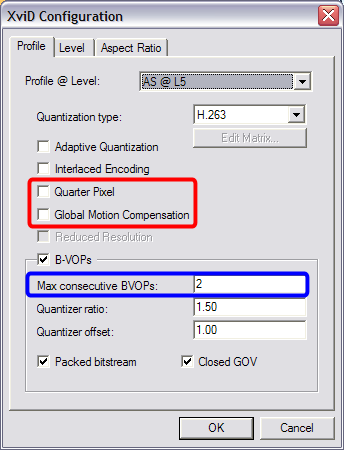
After clicking the "More" button the "XviD Configuration" screen will pop up. "Quarter Pixel" and "Global Motion Compensation" boxes must be unchecked! Do not put a check mark in those boxes! (red)! For maximum compatibility, uncheck the "B-VOPs" altogether, otherwise put a 1 in the "Max consecutive BVOP's:" (blue). Some experiment may be needed, as some players will not playback files with 2 B-VOPs, but other will if you deselect the "packed bitstream" option. If you have to use B-VOPs (which improves quality, but we're doing 1 pass encoding so quality has been sacrificed already), either disable the "packed bitstream" option, or leave "Max consecutive BVOP's:" at 1. (Screen Shot Below)
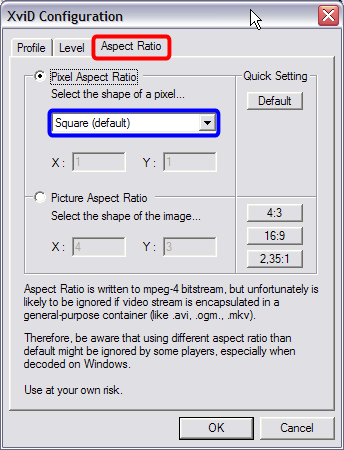
After setting the above settings, now click the "Aspect Ratio" tab (red). Make sure it says "Square (default)" in the shape of pixel box (blue). It should be selected by default, but non square pixels are good for encoding widescreen (eg. anamorphic) content, but many DVD players won't support this. (Screen Shot Below)
Press "OK" to close down the "Profile @ Level" setup screen and return to the main XviD setup screen. There is an "Advanced Options" button there that you can click on to setup further options for XviD (like Motions search precision, VHQ mode). Most of these settings are already explained in this guide, so you should go there and take a look. One interesting option is in the "Debug" section, where you can specify the output AVI's FourCC code, and change it to "DX50" for better compatibility (see the "Reasons for Incompatibility" section above).
You're done! Just keep clicking the "OK" button until you return to the main VirtualDub screen. Now these settings for XviD and DivX are already set, so the next time you want to re-encode a video, you will just have to set the bitrate and thats it.
Select the XviD codec (red). Sometimes you have more than on XviD listed (one with "FOURCC Code" "xvid" and another with "yv12") - in this case, choose the one that has the "FOURCC Code" "xvid" (blue). Click on Configure (green) to continue. (Screen Shot Below)
After clicking on the "Configure" button, this screen will come up. There are several things we need to check/change here so I will refer to them by color. The color corresponds to the color box on the screen shot. Do them in the order I list below. (Some might already be set to what they are suppose to be though.). For a more detailed explanation of profiles, and other XviD codec settings, please refer to this guide.
Red - 1. Click the down arrow and select "AS @ L5" for the profile @ level. "AS" stands for "Advanced Simple". As mentioned above many DVD players only support "Simple" or "Advanced Simple" profiles, and without QPEL/GMC support.
Blue - 2. "single pass" is the fastest, but won't give you the best quality. "Twopass" will take approximately double the time of a "single pass", but the quality will improve. For this guide, we'll select "single pass".
Green - 3. Click this button until it says "Target bitrate (kbps)" on the button
Gold - 4. Enter in the bitrate number you wrote down from GSpot in the first step or for something more precise, click on the "calc" button next to it to open up the XviD bitrate calculator. Here, you'll need to enter some of the other information we took down from GSpot, such as the duration, the audio bitrate, FPS and also the file size you want to achieve (either match the original file's file size). Once you enter all of the information, the bitrate you need is calculated for you and the bitrate is automatically adjusted for you as well when you press "OK".
One thing to note here is that to ensure maximum compatibility, try to make sure the bitrate isn't too high, as you may risk problems with skipping. The range of acceptable bitrate will vary from player to player (so check your player's manuals for more information). For my DVD player, it is below 1500 kbit/s for files burned on CDs and 3000 kbit/s for files burned onto DVDs.
Purple - 5. Then click on this button (purple) (Screen Shot Below)
After clicking the "More" button the "XviD Configuration" screen will pop up. "Quarter Pixel" and "Global Motion Compensation" boxes must be unchecked! Do not put a check mark in those boxes! (red)! For maximum compatibility, uncheck the "B-VOPs" altogether, otherwise put a 1 in the "Max consecutive BVOP's:" (blue). Some experiment may be needed, as some players will not playback files with 2 B-VOPs, but other will if you deselect the "packed bitstream" option. If you have to use B-VOPs (which improves quality, but we're doing 1 pass encoding so quality has been sacrificed already), either disable the "packed bitstream" option, or leave "Max consecutive BVOP's:" at 1. (Screen Shot Below)
After setting the above settings, now click the "Aspect Ratio" tab (red). Make sure it says "Square (default)" in the shape of pixel box (blue). It should be selected by default, but non square pixels are good for encoding widescreen (eg. anamorphic) content, but many DVD players won't support this. (Screen Shot Below)
Press "OK" to close down the "Profile @ Level" setup screen and return to the main XviD setup screen. There is an "Advanced Options" button there that you can click on to setup further options for XviD (like Motions search precision, VHQ mode). Most of these settings are already explained in this guide, so you should go there and take a look. One interesting option is in the "Debug" section, where you can specify the output AVI's FourCC code, and change it to "DX50" for better compatibility (see the "Reasons for Incompatibility" section above).
You're done! Just keep clicking the "OK" button until you return to the main VirtualDub screen. Now these settings for XviD and DivX are already set, so the next time you want to re-encode a video, you will just have to set the bitrate and thats it.


