

 Home
Home

Page 1 of 2: How to Extract AC3 Audio Using VirtualDubMod
In this guide I will show you how to extract the audio from your AVI file and save it as a .AC3 file.
You will need VirtualDubMod for this guide. This method will only produce a true AC3 file if the source audio is actually AC3 audio. If it isn't VirtualDubMod will just demux it with the file extension .AC3 . It would still be a constant bitrate mp3 etc.
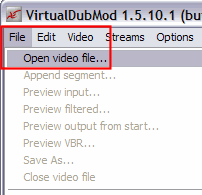
Go ahead and start up VirtualDubMod and load your AVI file. You would do so by clicking "File", then "Open video file..." (red). [Screen Shot Below]
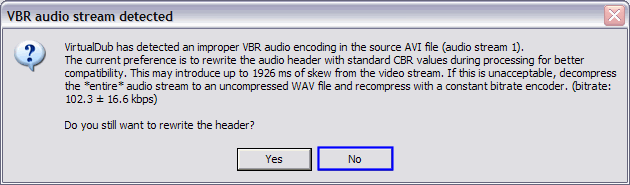
This error message might pop up, if it does click "No" (blue). [Screen Shot Below]
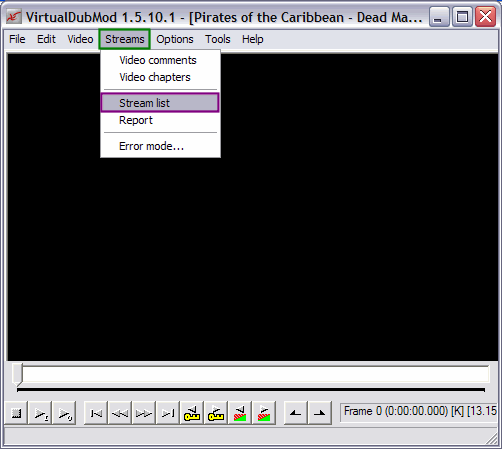
After it has loaded, click "Streams" at the top (green) then click "Streams List" (purple). [Screen Shot Below]
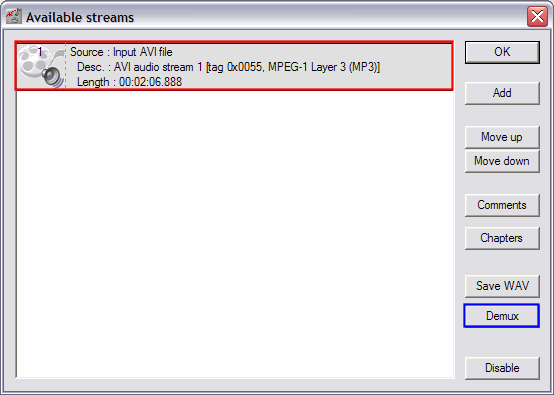
After that this screen will come up. Here just click the audio stream (red) in the list, then click the "Demux" button (blue). [Screen Shot Below]
You will need VirtualDubMod for this guide. This method will only produce a true AC3 file if the source audio is actually AC3 audio. If it isn't VirtualDubMod will just demux it with the file extension .AC3 . It would still be a constant bitrate mp3 etc.
Go ahead and start up VirtualDubMod and load your AVI file. You would do so by clicking "File", then "Open video file..." (red). [Screen Shot Below]
This error message might pop up, if it does click "No" (blue). [Screen Shot Below]
After it has loaded, click "Streams" at the top (green) then click "Streams List" (purple). [Screen Shot Below]
After that this screen will come up. Here just click the audio stream (red) in the list, then click the "Demux" button (blue). [Screen Shot Below]
1 2 
