

 Home
HomePage 2 of 6: Starting and setting up a new project
Step 1: Starting and setting up a new project
Start Nero Vision. You will be shown the following screen, click on "Make DVD" and select the "AVCHD" option.
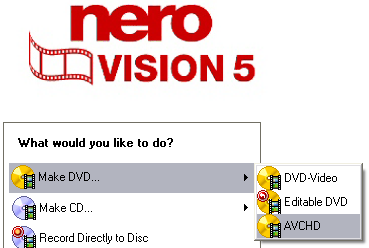
You should now be presented with the "Content" screen where you can import your existing video files. We'll get back to this later. First, select the disc type you plan on using to burn this project ("DVD" is for your standard single layer 4.7 GB disc, while "DVD-9" refers to dual layered media and DVD-1 refers to 8cm MiniDVDs). The size bar to the left of this selection menu indicates the amount of space your project will take (it will be empty now since we haven't loaded in any files yet). Any problems with the file size will be shown here as well, and you can press the question mark icon to the right of the disc type select menu to find out what's wrong.

Next, click on the "More" button on the bottom and press the "Video Options" button. This should open the "Video Options" setup screen, where you can configure the setup options for this project.

On the "General" tab, you can configure the mode of the video (PAL/NTSC) - if you don't know which mode your country uses, you can select it based on your country's name. If the source files you have are not in the same video format, it will be converted to the format. Note that for HD content, there is no "PAL" or "NTSC" difference. Nero SmartEncoding should be set to "Enabled" to allow Nero Vision to determine when best to re-encode the video and audio (although generally, it will re-encode the video even if the source format is already the correct format and if it already fits onto the disc).
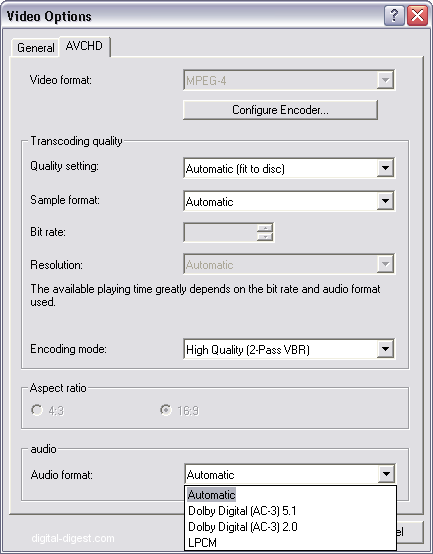
On the "AVCHD" tab, you can configure the transcoding quality. You can click on the "Configure Encoder" button to configure the MPEG-4 AVC encoder. There are only three "quality" settings you can choose, Normal, High and Highest - the higher the quality, the longer it takes for the video to be encoded. If you don't have a fast CPU, stay on Normal.

Back to the "AVCHD" configuration section. Most of the time, it's best to leave the "Quality Setting" at "Automatic (fit to disc), as this will ensure the best possibly quality given the size of your blank media. Alternative, you can select the "High Quality" mode to ensure the best quality, but there is a chance that it won't all fit onto one 4.7 GB blank disc and that you will need further processing in DVD Shrink (which is not covered by this guide). Leave "Sample Format" on "Automatic". The "Encoding Mode" option should be set to "High Quality (2-Pass VBR)" for the maximum quality - please note that this will roughly double the encoding time as compared to the "Fast Encoding" mode.
"Audio format" can be changed from Dolby Digital AC3 5.1, 2.0 or Linear PCM. Use AC3 to save space, as LPCM will eat up the available space in no time.
Press "OK" to close the setup screen. You might be asked if you want these settings to be the new default setting, I would choose "No" (and also click the option so I never get asked the question again).
Now that you're back on the "Content" screen, there is an option called "Create chapters automatically" option. This option, when selected, will automatically create chapters for your movie at regular intervals. These chapters will not actually be on the chapter select screen of the menu, but can be accessed like normal chapters during playback. If you want to manually set the chapters yourself (and these would be added to the "Chapter Select" part of your DVD menu), then leave this option unchecked. You can click on the "Reduce" button to minimize the additional setup options.
Next to the More button, you can select the "Save" button to save your project. The first time you click on this button, it will ask you where to save the project file. If you click on the "Save" button after this, it will automatically save the project to the specified file (although you don't get a prompt or progress report, which might seem to suggest nothing happened). Remember to save your project often.


