

 Home
HomePage 2 of 3: DVD Flick Project and Menu Setup
Step 3: DVD Flick Project and Menu Setup
Start DVD Flick. The first thing we will do is to set up the project, so click on the "Project Settings" button.

In the "General" section first. You can specify a title for the project here - note that this is not the disc's title (separately configured in the "Burning" section). You can also change the target size to match the kind of DVD media you will burn to (most likely "DVD (4.3 GB)"). You can also specify a custom size if, for example, you want to burn other types of files to the DVD.
The "Encoder Priority" will determine how much resources Windows will allocate resources to DVD Flick - the "Normal" setting should be good enough if you plan on doing light work in the background, while "Below Normal" will allow you to work normally. If you are sure you won't be doing anything while DVD Flick is working, you can select a higher priority, but the performance gains might be minimal.
Thread Count specifies how many CPU threads you wish DVD Flick to use. Those with dual or quad core processors should enable 2 or 4 threads for maximum performance.
The "Keep intermediate encoded audio and video files" option, when selected, tells DVD Flick to keep the encoded audio (AC3) and video (MPEG-2) files it uses to create the DVD. Otherwise, these files will be deleted. Keeping these files are good if you plan on using these encoded files in other authoring or editing tools to create other DVDs.

On to the "Video" section. The "Target Format" will need to be changed to match your input file (see "Step 2").
"Encoding profile" determines encoding quality, and therefore, speed. "Fastest" will have the lowest quality, while "Best" will be the slowest and highest quality. "Normal" is recommended.
"Target bitrate" allows you to set a constant bitrate for the encoding, which is not recommended unless you know what you are doing. Bitrate determines quality and file size. As an example, most commercially produced feature movie DVDs use a bitrate between 7 and 9 Mbit/s. Selecting the "Auto-fit" option is your best bet, as DVD Flick will try to fit all your video files using the highest bitrate possible and not use a bitrate that is less than 2.5 Mbit/s. You can also set your own custom bitrate.

Click on the "Advanced" button to access the advanced video options. "Add overscan borders" will add a border around your video. The reason for doing this is that many older TVs have overscan, that is to enlarge the picture slightly so that the border area is not viewable. If you do not have overscan enabled, then parts of your video might be cut off. On the other hand, most new TVs do not have overscan and if you select this option, you will see a black border around the picture. I would leave it unselected.
"Log PSNR values" will log certain an objective quality measurement value in dvdflick.log, not necessary unless you need to know.
"Half horizontal resolution" will half the horizontal resolution from 720 to 352, lower quality, but allowing more video to be stored (standalone DVD recorders often use this mode to the extra long record settings). Not recommended unless your source video is already at 352 resolution or lower.
"Deinterlace source" can be used if the source is indeed interlaced. If you're not sure, then don't enable this option.
"Copy MPEG-2 streams" can be used if your source is a DVD compliant MPEG-2 file - this then will make DVD Flick skip the encoding process and use the input MPEG-2 files as it is. Please be extra careful here and make sure your MPEG-2 input is indeed DVD compliant, otherwise you risk producing a DVD that won't work on DVD players.
"Apply 2:3 pulldown" can be used if your source material is 23.976 FPS (NTSC-Film) and you wish to make a NTSC DVD (29.97 FPS). In most cases, you're better off selecting "NTSC-Film" as target format in the "Video" settings section>
When you're done, press "Accept" to close this window and return to the main settings section.

Now on to the "Audio" section. "Volume modification" allows you to adjust the volume of the audio output, as a percentage of the input volume (so 100% would be the same volume, 10% would be greatly reduced volume, and 200% would be double the volume). For "Channel count", select "Auto" match the number of channels from the input file, or you can force Mono, Stereo or 5.1 audio to be used. If your source has more channels than what you select here, then the number of channels in the source will be used (no downsampling occurs, so if your source was 5.1 channels and you select stereo here, the output will still be 5.1 channels). Lastly, you can select a bitrate to use - 384 kbit/s is fairly standard on DVDs for 5.1 audio, 448 for extra quality, and 192 kbit/s for stereo is also common.

Onto the "Playback" section. You can specify what happens "After a title has finished playing". This depends very much on the type of disc you are producing. If for example your disc is a series of continous holiday videos, then you might want to select "Play the next title" after each video ends. If your disc is a main movie, plus extra features, then you might need to select "Return to menu" to make sure when the main movie finishes, it goes back to the menu so the viewer can select to view the extra features.
"Loop to first title when done playing last" is a similar setting, except this only affects the very last title. "Always enable first subtitles" can be useful if your DVD is in a foreign language and you want to enable subtitles by default.

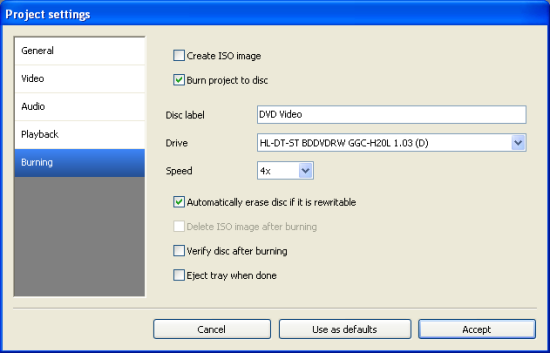
Finally, to the "Burning" section. Here, you can specify the burning options for the project. By default, DVD Flick will create the DVD folder (AUDIO_TS and VIDEO_TS folders, with IFO/BUP/VOB files) for burning with DVD-video burning software such as Nero. Instead, you can tell DVD Flick to create an ISO image file (eg. to burn with ImgBurn) or burn the project directly to a disc.
If choosing to burn straight to disc, make sure you have a blank disc inserted into your burner before you start the encoding process. You can specify the label for the disc and select which burner to use.
I recommend the default option of creating a DVD folder (and not burn straight to disc) - this way, you can test playback on your computer first (eg. using PowerDVD) before committing to disc.
Press "Accept" to save the settings and return to the main DVD Flick interface.
We'll now configure the menu options for this project. Click on the "Menu Settings" button.

From the left hand side, choose one of the menu templates (or "None" if you don't want menus). A preview of the menu style is shown on the right. There are also some down below, which include "Auto-play menu" to enable the menu to automatically start upon inserting the disc (like most DVDs). If you have subtitles or multiple audio tracks, then you can also select to display the audio or subtitles menu first. There is also a "Preview" button to preview what the menu will look like.


